
WP Robot Documentation
Table of Contents
- 1. Installation
- 2. Quick Start Guide
- 3. The Options Page
- 3.1 Templates
- 3.2 General Options
- 3.3 Amazon Options
- 3.4 Article Options
- 3.5 Clickbank Options
- 3.6 eBay Options
- 3.7 Yahoo Answers Options
- 3.8 Youtube Options
- 3.9 The Translation Module
- 3.10 Flickr Options
- 3.11 Yahoo News Options
- 3.12 RSS Options
- 4. The Probabilities Page
- 5. The Bulk Add Page
- 6. Support
- 7. Affiliate Program
1. Installation
Installing WP Robot is not different from installing any other plugin on your Wordpress weblog, so if you have done that already you probably won't have any problem. If you never installed another plugin before I recommend you start with having a look at this detailed guide on how to install a Wordpress plugin.
1.1 Installing the Full Version of WP Robot
If you bought the full version of WP Robot you will only need to follow two steps in order to install it:
- Upload the plugin to your website. You can either do this by using a FTP program (like Filezilla) and uploading the whole "WPRobot" folder you got in the .zip file to the "/wp-content/plugins" folder of your Wordpress installation. Alternatively you can just upload the .zip file directly via the "Install Plugins" screen in your Wordpress admin area (under "Plugins > Add New").
- Activate "WP Robot" on the "Plugins" page of your Wordpress admin area.
1.2 Installing a Custom Version of WP Robot
If you bought a custom version of WP Robot you will have to do one additional step before uploading the files to your website: You have to copy the php files of all modules you bought into the "modules" folder of the WP Robot Core Version you intend to use. If you didn't buy a WP Robot Core you can find the free version here. After you copied all the module files it should look like this and you can then proceed with uploading your files to your website (see 1.1).
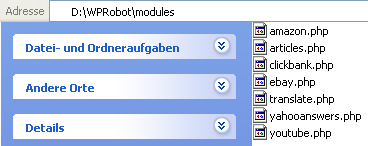
Important: Uploading single module files to your weblog and trying to activate them won't work! All modules have to be placed inside the "modules" folder of a WP Robot Core Version to be functional.
2. Quick Start Guide
After you have finished the installation and activated the plugin additional menu options for WP Robot will appear in your Wordpress admin section. They will look like this:

- Go to the "Options" screen of WP Robot
Although the "Keywords" section (to which you get when you click the big "WP Robot" header) is what could be called the main part of the plugin it is important to have a look at the options of WP Robot first. In order to do that just click on the "Options" link!
What you will see on the next screen depends on which modules you have installed. The more you have, the more options you will see obvously. For the sake of this quick start guide I will only explain the most important options you should set up before starting to create posts. For a detailed explanation of all options please refer to section 3 of this guide.
- Insert your affiliate keys for Amazon, eBay and Clickbank
The first options you'll probably want to set are your affiliate Ids because without them you won't earn money from your posts. Affiliate ID options are available for the Clickbank" module, the Amazon module and the eBay module.
- Set "New Post Status" to draft if you want to review posts before going live.
Next you should decide if you want to publish new posts made by WP Robot on your weblog immediatelly or if you want to add them as drafts in order to review them first. You can do that via the "New Post Status" option in the very beginning of the options form.
- Go to the "Keywords" (main page) of WP Robot
Besides that there are no options that would require your immediate attention. Still, since most of them are actually quite self-explanatory you should have a quick glance over all of them. After that, head on to the "Keywords" section of WP Robot through the link in your admin navigation (click on the link titled "WP Robot").
- Add a new keyword with your custom settings
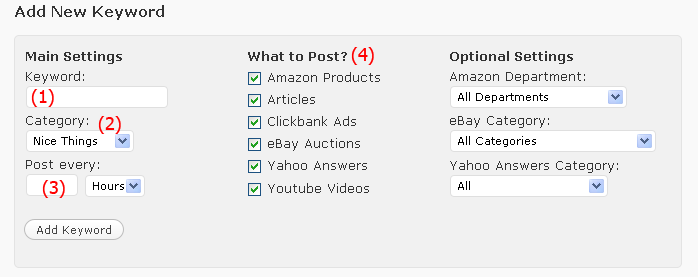
The image above gives an overview over the "Add new keyword" form. Basically everything is straight forward here.... you enter the keyword (1) you want to generate posts for, select the category (2) of your blog you want the posts added to and specify a timespan (3) , i.e. "create a post every 5 days". If you want to you can also disable posting of specific modules via the checkboxes (4) in the middle and add some specific options only used by certain modules on the right.
- Afterwards keywords can be edited and deleted with the table on top
After you pressed "Add Keyword" the keyword will be shown on the top of the page like this:

A first post will be created shortly after a new keyword has been added to WP Robot automatically.
As you can see the table shows you details about the keyword and posts created and gives you the options to delete or edit a keyword. With the "Run now" button you can also create additional posts for any keyword outside of the regular schedule.
Please note: The post count next to each post will usually not be 100% accurate since it also includes posts that have been skipped (i.e. because they were duplicates). Thus the post count will usually be higher than the real number of posts created.
The red ! next to a post number usually means no (or no more) posts have been found for this module and keyword. The specific module will then be disabled for this keyword, all others will continue to post though.
The exclamation mark can also mean that the API request to a certain module has failed, for example because a wrong API key has been entered in the options. Because of that please double check your API key if you are only seeing red exclamation marks for a certain module.
You can use the "Reset All '!'" button to remove all exclamation marks and restart posting for the affected modules.
2.1 The Keywords Page
The keywords page is the main screen of your WP Robot plugin. Here you can...
- Add New Keywords
The Keywords you set up tell WP Robot what kind of content you want to have posted to your weblog. The different options of the "Add Keyword" form have already beed explained in the quick start guide above.
- Add New Amazon BrowseNode
If you have the Amazon module installed you can also add BrowseNodes instead of (or in addition to) your keywords. BrowseNode are Amazon's way to categorize their content and by using them you can have WP Robot post products from a specific Amazon category to your weblog.
Important: For BrowseNodes to work you have to specify the correct Amazon Search Index as well! For example if you want to add a BrowseNode for dSLR cameras you would have to select "Electronics" as search index.
- Add New RSS Feed
If you have the RSS module installed you can add a RSS feed via this form to have its content posted to your weblog. Besides the fact that you have to specify a URL RSS feeds work exactly like Keywords: You specify a category on your blog to post to as well as a time interval. Each time the scheduled time interval is reached one unique item from the RSS feed URL you entered will be posted to your weblog.
- Delete Keywords
You can either delete single keywords (or feeds/browsenodes) via the link below each of them or delete several at once by selecting their checkboxes and then hitting the "Delete" button.
- Create Posts
You can create posts out of the normal schedule either by using the "Post Now" button below each keyword (will create a single post for this keyword) or by selecting several keywords' checkboxes and then hitting the "Post Now" button (will create a single post for each keyword). If you change the number in the "Number of Posts" field you can also bulk create a larger number of posts at once. Please note if several keywords are selected the number of posts will be created for each selected keyword, not in total!
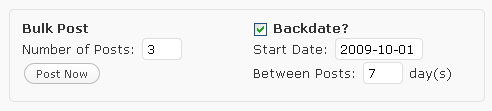
Backdating: The "Bulk Post" does also offer you the option to backdate all posts that are created. By checking the checkbox in front of "Backdate?" and specifying a "Start Date" (in the given format) all posts are created with a timestamp starting from that date - with the number of days that is specified in the "Between Posts" field between each two posts.
Example: The following settings will create 3 posts, the first being dated "10/01/2009", the second "10/08/2009" and the third "10/15/2009".
3. The Options Page
In this section you will find an explanation of every option and setting available in WP Robot.
3.1 Templates
Templates allow you to specify how the posts generated by WP Robot will look. There is a specific template option available for each single module, which only applies to posts created by that module.
All templates use template tags like for example {keyword}, which will then be replaced with the associated content in posts created by that module. All template options are set up by default, so you don't have to change them if you don't want or need to.
There are two template tags which are available for all modules, which are {keyword} (inserts the keyword you set up in WP robot) and {url} (inserts the URL of the post/page that has been scraped). You can of course also enter other text, html tags or hyperlinks inside the templates besides template tags!
For the module specific template tags please have a look at each module's explanations below.
The MIX Feature
The eBay, Youtube and Flickr Modules offer a MIX feature which allows you to use their content in every other of WP Robot's module in order to mix your content and make your blog look more natural. This feature allows you for example to add thumbnail images to Article Module posts or related auctions to Amazon Module posts.
MIX Template Tags:
{auction} - Use this tag in the template option of any module to insert a targeted eBay auction into every post by that module. {auction:x} (x being a positive number) can be used to insert several auctions into every post.
{image} - Use this tag in the template option of any module to insert a related image from Flickr into every post by that module. The {owner} and {imageurl} tags can be used along with {image} to give proper attribution to the owner of the image (as required by some of Flickr's licenses). Alternatively {image:keyword} can be used to insert images related to a different keyword.
{video} - Use this tag in the template option of any module to insert a targeted video from Youtube into every post.
{clickbank} - Use this tag in the template option of any module to insert a targeted ad from Clickbank into every post.
{amazon:x} - Use this tag in the template option of any module to insert up to x products from Amazon into every post.
3.2 General Options
- New Post Status: New posts created by WP Robot can either be added as drafts (allowing you to review them before going live) or published immediatelly.
- Reset Post Count: If set this option will reset the post count of all modules after a certain number of posts has been reached, i.e. if set to 50 the post count for the Amazon module will be reset to zero after 50 posts have been made (which means it starts posting from the beginning again). This can be useful because results on many sites usually get more and more unrelated to the original keyword after a certain number of results.
- Randomize first post times: With this option you can control when the first post is created after adding a new keyword. By default a first post is created between 0 and 0 hours after posting, meaning immediatelly. You can change this to anything, as long as the second number is larger than the first and both are not negative!
- Randomize Post Times: If enabled every new post will be spread out by up to an hour around the interval you have set for each keyword randomly. Thus, for a keyword with a post interval of 8 hours a post will be made every 7 to 9 hours instead of exactly every 8 hours.
- Cloak Affiliate Links: Make all affiliate links to Amazon, Clickbank and eBay (except eBay RSS links) appear as "cloaked" links from your own domain. Important: For cloaking to work additional setup steps are required! Please read and follow the instructions in this post.
- Automatically create Tags: If "Yes" is selected tags will be added to all posts WP Robot creates automiatically.
- Exclude from Tags: These words are excluded from the tagging option and won't be added to any posts. Please note words with 3 characters and less are automatically excluded, so you don't have to insert them here.
- Author: Choose the user ID which shall be used as author for all WP Robot posts.
3.3 Amazon Options
- Amazon Affiliate ID: You affiliate ID for Amazon, usually looking like "name-20".
- API Key (Access Key ID): You need a free Amazon Product Advertising API Key to use the Amazon module. You can sign up to the API for free here and then find the key under "Access Identifiers".
- Secret Access Key: In addition to the API key Amazon requires a Secret Key for all calls made to the API. You can also find this key under "Access Identifiers" in your Product Advertising API account.
- Search Method: Only applies to keywords consisting of several words. If set to "Exact Match" the module will only return products that contain all words of your keyword phrase in the exact order, if set to broad it will return products containing all words but in any order.
- Skip Products If: Gives you the option to prevent certain products with missing information from being posted.
- Post Reviews as Comments: Whether to add reviews from the Amazon product page to posts as comments. Excerpt reviews refers to the small review excerpts which are usually displayed on the right hand side of the Amazon review section.
- Amazon Description Length: The length of the description from the Amazon product page that will be included in posts. "Full Description" does also include any images, tables and other data in the original description.
- Amazon Website: Specify which Amazon site you want to use.
- Strip brackets from titles: Removes all brackets (i.e. "(Hardcover)" for books from titles in order to shorten and simplify them.
- Post Template: see 3.1. for a general description of templates. Template tags available are:
{thumbnail} - Thumbnail image of the product
{image} - URL of a larger product image
{features} - A list of features as reported by Amazon
{description} - description of the product
{price} - The price on Amazon
{avgrating} - The average rating of the product
{noreviews} - The total number of reviews.
{link} - Affiliate link to the product - Review Template: This template specifies how Amazon reviews (which are added as comments) are formatted. Template tags available:
{review} - The full review text
{rating} - The rating of the reviewer, from 0 to 5
{link} - Affiliate link to the product
{keyword} - The keyword that was used in WP Robot
{url} - The affiliate URL of the product
3.4 Article Options
- Article Formatting Method: "Leave Formatting Intact" uses original formatting rules of articles which is usually better for non rewritten/translated articles, but: all links within the article body remain live with this method! "Replace Formatting" replaces all original formatting and code of the articles, which is safer if you translate your articles.
- Article Language: Choose the language articles will be posted in. Please note: This option will only work if "articlesbase.com" is selected as "Article Source".
- Post Template: see 3.1. for a general description of templates. Template tags available are: {article} (the Article body), {authorbox} (box with author information and links)
3.5 Clickbank Options
- Clickbank Affiliate ID: You affiliate ID for Clickbank, which is also your username on clickbank.com.
- Filter Ads? When enabled ads that contain the words "Commission" or "Affiliate" are skipped.
- Post Template: see 3.1. for a general description of templates. Template tags available are: {description} (description of the Clickbank Ad), {link} (Affiliate Link for the Clickbank Ad)
3.6 eBay Options
- Ebay Affiliate ID: You affiliate ID for eBay.
- Country: Determines which eBay website will be used, i.e. "United Kingdom" will return auctions from ebay.co.uk.
- Language: Sets the language the auction details will be posted in.
- Sort results by: Different options for ordering the results from eBay which will be posted.
- Number of Auctions per Post: With this option you can add more than one eBay auction to a single post.
- Auto Renew Auctions: If "Yes, embed RSS feed" is selected a RSS feed will be embeded in the post that will always show the most recent auctions from the eBay website. Otherwise the auctions will be hardcoded and never change, even after being finished.
- Title Template: Specifies the title that is used for eBay posts. Template tags available are: {keyword} (the keyword the post was created for), {item} (title of the eBay auction)
- Post Template: see 3.1. for a general description of templates. Template tags available are: {auctions} (the auctions scraped from eBay)
3.7 Yahoo Answers Options
- Yahoo Application ID: Enter your Yahoo Application ID. This is necessary to use the Yahoo Answers API. You can get an ID here.
- Add "Powered by Yahoo! Answers" text to footer: The TOS of Yahoo Answers requires that websites which use their content add the text "Powered by Yahoo! Answers" somewhere on the page. This setting gives you the option to do that easily but of course you could also just disable it and add the text somewhere yourself.
- Language: Sets the language questions and answers will be posted in.
- Post Template: see 3.1. for a general description of templates. Template tags available are: {question} (the question from Yahoo Answers)
3.8 Youtube Options
- Language: Sets the language videos will be posted in.
- Safe Search: Select the safe search setting to be used for queries by the Youtube Module.
- Sort Videos by: Select how to sort videos returned by the Youtube API.
- Post Template: see 3.1. for a general description of templates. Template tags available are: {video} (the embedded Youtube video), {description} (the Video's description), {rating} (average rating of the video), {viewcount} (number of views of the video)
- Post Comments: If selected the comments of Youtube videos will be scraped and added to the posts as comments.
3.9 The Translation Module
- Translate posts from ... : Here you can set the language you want posts to be translated to. You can translate the same text several times in order to rewrite it, for example by translating from English to German to English.
- Translation Service to use: WP Robot can either use Google Translate or Yahoo Babelfish or both (on a random basis) to translate texts.
- Translate... : Here you can select which texts and modules are being translated by the translation module and which are not. By default some of the checkboxes (i.e. for titles and Youtube comments) are deactivated and I recommend you don't activate all of them because if you make too many translation requests Google might temporarily ban your IP address!
Important: Yahoo Babelfish is less reliable than Google Translate and will sometimes not return the translation properly (i.e. only half of it or a few words). This is why Google Translate is selected as default translation engine at the moment.
3.10 Flickr Options
- Flickr API Key: Your key for the Flickr API. You can get one here.
- License: Can limit photo searches to specific licenses. See here for all available licensing options.
- Image Size: The size of the images that will be added to posts.
- Content Type: This option can limit searches to only photos or screenshots.
- Sort by: How the results from Flickr will be sorted.
- Post Template: see 3.1. for a general description of templates. Template tags available are: {image} (is replaced by the actual image), {date} (date photo was taken on), {owner} (owner of the image), {keyword} (the keyword the post was created for)
- Post Photo Comments? If set to "yes" WP Robot will add all comments for the image found on Flickr as comments on the blog. (Beware: Some images have very many comments)
- Strip All Links from... Use this option to strip links from Flickr comments added to a post.
3.11 Yahoo News Options
- Yahoo Application ID: Enter your Yahoo Application ID. This is necessary to use the Yahoo Answers API. You can get an ID here - can be the same as Yahoo Answers API key.
- Language: Select the language you want news to be posted in.
- Number of News per Post: Specify the number of news posts you want to get in a single post. Please note that if set above one the post counter for Yahoo News will progress at a faster rate.
- Title Template: Specifies the title that is used for Yahoo News posts. Template tags available are: {keyword} (the keyword the post was created for), {title} (the title of the last news item found)
- Post Template: see 3.1. for a general description of templates. Template tags available are: {thumbnail}, {title}, {summary}, {source}
3.12 RSS Options
- Content: Select if you want to post the full article from the RSS feed if it is available or only the description.
- Post Comments if Found: Choose if comments shall be added to your weblog if available in the feed.
- Post Template: see 3.1. for a general description of templates. Template tags available are: {content} (the content of the feed), {source} (a link to the original article), {author} (the name of the original author), {mediacontent} (a Video found in the post), {mediathumbnail} (the thumbnail for the media that has been found [if any])
4. The Probabilities Page
Through the probabilites page you can control which modules are used more or less often than others or, in other words, the chance a certain module is selected to create a post.
By default WP Robot posts Clickbank ads, eBay auctions and Youtube videos a little less likely than the other modules. If you want to change that simply edit the percentage values on the page and save your changes. The total of all probabilities has to be 100!
If you choose not to use a certain module when setting up a keyword the value entered in the probabilitie page for the module is of course overridden and set to zero for this particular keyword.
5. The Bulk Add Page
With the Bulk Add Page you can add keywords to WP Robot in bulk for faster set up. You have to specify keywords and categories separated by a ";" (for example "Bananas;Uncategorized") and can either set random post intervals for all of them or specify your own. Please follow the instructions on the "Bulk Add" page.
Since WP Robot 2.1 bulk add can also create new categories which don't exist yet on your blog before adding keywords. To do this simply check the "Create Categories?" checkbox.
6. Support
If you need any other help with using WP Robot, have a problem, discovered a bug or want to make a suggestion please don't email me but use the WP Robot support forum instead. This way other users can check if there was already a solution to their problems (and you should too before posting!).
7. Affiliate Program
Easily get back the money you spent on WP Robot: Earn 35% commission on every sale you refer by using the WP Robot affiliate program!
Buy the Full Version (best value)
The full version of WP Robot 4 includes all 24 modules, can post content from 23 different sources and lets you earn commission from 9 affiliate networks! You may use the plugin on all your websites!
Buy a Custom Version
Build yourself a custom version of WP Robot 4 and select only the modules and features you need! Order 3 or more modules to get a rebate and free bonuses!
Your Advantages:
- Plugin will be delivered to you instantly after payment has been made!
- You have a 14 day money-back guarantee in case you are not satisfied - no questions asked!
- Free support via the WP Robot support forum and free updates included with every order!
- By making a purchase you agree to the terms of service.


